


Help
How can we help?
Login
Open a Barion Wallet
Top-up
Send money
Receive money
Open and manage a shop
Limits for organizations
Bank transfer, withdrawal
Close your account
Other questions related to Barion Wallet
Pricing Plans
Login
Need more help?


Contact helpline
(06 1) 464 7099Availability:
Monday:10:00-16:00
Tuesday:10:00-16:00
Wednesday:10:00-16:00
Thursday:08:00-20:00
Friday:10:00-16:00

Back
How can I save a new bank card?
You can save a card’s data when you first use it to top up your balance or make a payment.
From Barion App
- Log in to your Barion Wallet through the Barion app.
- Select the History > Topup menu item; this will take you to the “Bank Card” screen by default.
- Select the currency and enter any amount.
- Click on the “Next” button.
- Choose “New credit card” > “Manual”.
- Enter your card details.
- Turn on the “Save card” option.
- Select “Save card and top up”.
Through your browser
- Log in to your Barion Wallet via your browser.
- On the Home page, click the Top up button; this will take you to the “Card” screen by default.
- Select the currency and enter any amount.
- If you have a saved card, click “Change” next to the card, then click the + Add new card button.
- If you do not have a saved card, click the “Top up” button.
- Enter your bank card details.
- Make sure the “Save card” option is enabled.
- Click the “Top up” button.
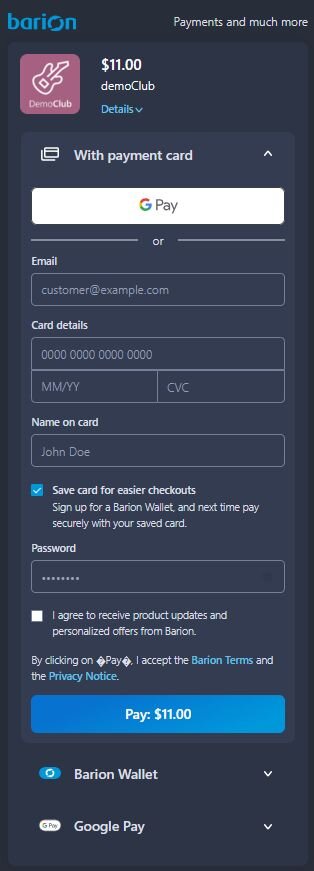
During a bank card payment through Barion
If you are paying at an online store that offers Barion as a payment option:
- Enter the email address associated with your Barion Wallet.
- Enter your bank card details.
- Turn on the “Save card for easier checkouts” option.
- Enter the password associated with your Barion Wallet.
- Select the “Pay: -amount-” button.

 Facebook
 Discord dev community
 @BarionPayment

 EU Licensed & Regulated Financial Institution